
ForeFlight logbook CSV workflow
ForeFlight logbook CSV import, export, and mapping
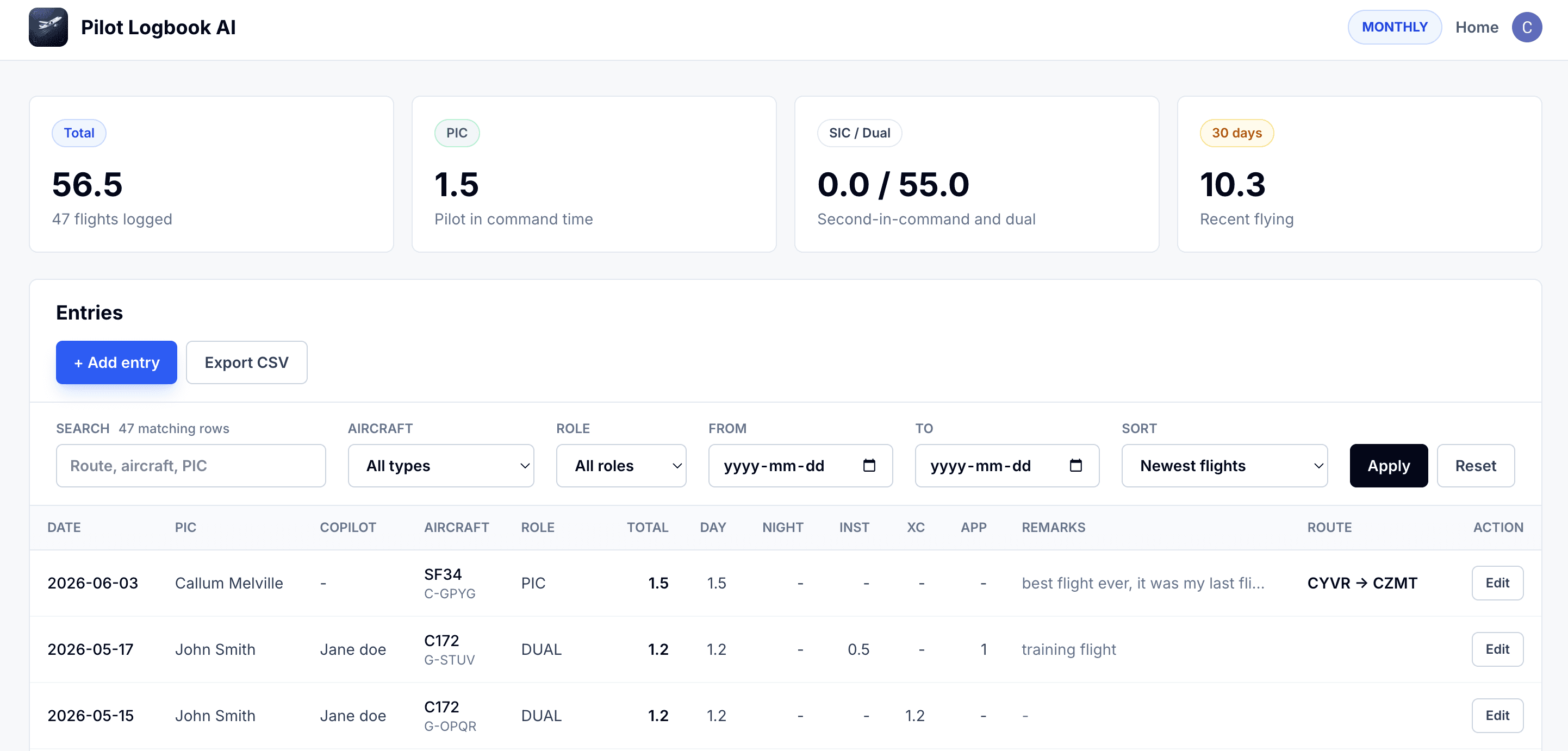
Paid TopLog plans let you import a ForeFlight logbook CSV, review the mapped records, and export TopLog entries in a CSV layout you can review against ForeFlight's import template when you need to move records back.
TopLog is not affiliated with or endorsed by ForeFlight. Review all imported and exported records before relying on them.
Two-way records
Use TopLog without giving up your ForeFlight records
TopLog is useful when you want AI-assisted paper logbook capture and a web logbook. Paid plans add CSV import and export for carefully reviewed migration workflows with ForeFlight.
Import
Bring a ForeFlight CSV into TopLog
Choose ForeFlight on iOS or web, upload the original CSV, and review the recognized aircraft and flight records before saving.
Review
Check the important columns
Confirm dates, route, aircraft, role time, night, instrument, landings, comments, and totals before treating the import as your working record.
Export
Create a CSV for the import template
On a paid plan, export TopLog entries in a layout you can review against ForeFlight's import template.
Switching workflow
A practical ForeFlight-to-TopLog migration
Treat the move like a logbook audit: preserve the source file, import in a controlled batch, review the parsed rows, and export a fresh backup when you are done.
Export your ForeFlight logbook CSV
Start with the spreadsheet export from ForeFlight on the Web. Keep the original file unchanged so you always have the source copy.
Import the CSV into TopLog
On iOS or web, choose ForeFlight as the spreadsheet source and select your logbook country. Upload the original CSV with its aircraft and flight tables intact. Saving requires a paid plan.
Review the mapped records
Check field mappings, aircraft type, role time, night time, totals, and any fields ForeFlight stores in packed or app-specific columns.
Export when you need to move back
Paid TopLog plans can export reviewed entries as a CSV arranged for review against ForeFlight's import-template columns.
From ForeFlight
How to export your ForeFlight logbook CSV
ForeFlight's support docs describe CSV export from ForeFlight on the Web. Use that export as the source file for TopLog import, and keep an untouched copy before you start mapping fields.
- 1Log in to ForeFlight on the Web.
- 2Open Logbook from the left menu.
- 3Choose the Export tab.
- 4Use the Export button to download a CSV copy of the logbook.
- 5Save the original export somewhere safe before editing or importing it anywhere else.
Back to ForeFlight
How to prepare a reviewed CSV for ForeFlight
When records need to go back, treat the TopLog export as a file to verify, not a blind sync. ForeFlight imports CSV or TSV files from the Logbook Import tab and warns pilots to avoid duplicate entries.
- 1Export a TopLog CSV arranged for ForeFlight's import template.
- 2Log in to ForeFlight on the Web and open Logbook.
- 3Open the Import tab.
- 4Upload the CSV or TSV file.
- 5Review ForeFlight's import preview before importing the records.
Fields
ForeFlight fields to check during import
The exact result depends on the file you export and the columns you choose to map. These are the groups pilots should review before saving imported records.
Core flight details
- Date
- Aircraft ID
- From
- To
- Route
- Pilot comments
Time columns
- PIC
- SIC
- Dual received
- Night
- Cross-country
- Instrument
Counts and checks
- Day landings
- Night landings
- Simulated flight
- Totals
- Unmapped columns
Column mapping
ForeFlight CSV fields to review in TopLog
Do not judge a migration by whether the row count matches. Check the fields that drive totals, currency, and application numbers.
ForeFlight export field
ForeFlight Date
TopLog field
Date
Review note
Check mixed date formats before importing older records.
ForeFlight export field
AircraftID
TopLog field
Aircraft registration / identifier
Review note
TopLog looks up the aircraft type from the export’s aircraft table. Check any missing or unmatched aircraft details.
ForeFlight export field
From / To / Route
TopLog field
Departure, arrival, route
Review note
Look for multi-leg routes and airport code spelling differences.
ForeFlight export field
TotalTime
TopLog field
Total time
Review note
Reconcile decimals and page or app totals after the import.
ForeFlight export field
PIC / SIC / DualReceived
TopLog field
Crew role time
Review note
Confirm split time columns before using totals for applications.
ForeFlight export field
Night / CrossCountry / ActualInstrument / SimulatedInstrument
TopLog field
Condition and currency fields
Review note
Check any field you rely on for currency or experience summaries.
ForeFlight export field
Landing Full-Stop Day/Night and Landing Touch-and-Go Day/Night
TopLog field
Landing counts
Review note
TopLog adds full-stop and touch-and-go counts within each day/night category. Compare both source fields when checking the totals.
ForeFlight export field
Comments / Remarks
TopLog field
Pilot comments
Review note
Check remarks against the source. The CSV does not carry ForeFlight’s separate signatures, endorsements, photos, or track logs.
Review notes
What to watch for before you rely on migrated records
CSV files are a practical way to move records, but they are not a substitute for review. Keep the source export and reconcile the fields that matter to your currency, applications, or interviews.
Review aircraft type
TopLog joins the flight table’s AircraftID to the aircraft table in the original export. Keep both tables in the CSV and check the resolved type and category before saving.
Check app-specific columns
TopLog reads supported packed crew and approach fields. Review approach counts and retained details, mixed role hours, and simulator time separately from aircraft time.
Keep both backups
Keep your ForeFlight export, your TopLog records, and a fresh TopLog export. That gives you a cleaner rollback path if a mapping needs correction.
Try the workflow with a small batch first
Import a few representative rows, check the mapped fields, then scale up once the workflow matches your records. That is faster than debugging a full-logbook import after the fact.
Compare digital logbook options
Questions pilots usually ask
Can I import a ForeFlight logbook into TopLog?
Yes. Export the original ForeFlight logbook CSV, choose ForeFlight in TopLog on iOS or web, and review the interpreted flight rows. Saving the import is included with Standard and Unlimited.
Can I export TopLog entries for ForeFlight?
Yes, with a paid TopLog plan. TopLog can export a CSV arranged for review against ForeFlight's import template. Review the exported file and ForeFlight's import preview before relying on the moved records.
Is this an official ForeFlight integration?
No. TopLog is not affiliated with or endorsed by ForeFlight. The workflow uses CSV files that pilots review during import and export.
Should I delete my original ForeFlight export after importing?
No. Keep the original export as your source backup until you have reviewed the imported records and reconciled the totals you care about.
Keep a separate backup for signatures, endorsements, photos, and track logs, which ForeFlight’s CSV export does not include. Source instructions: ForeFlight CSV export and export scope. Checked September 19, 2026.