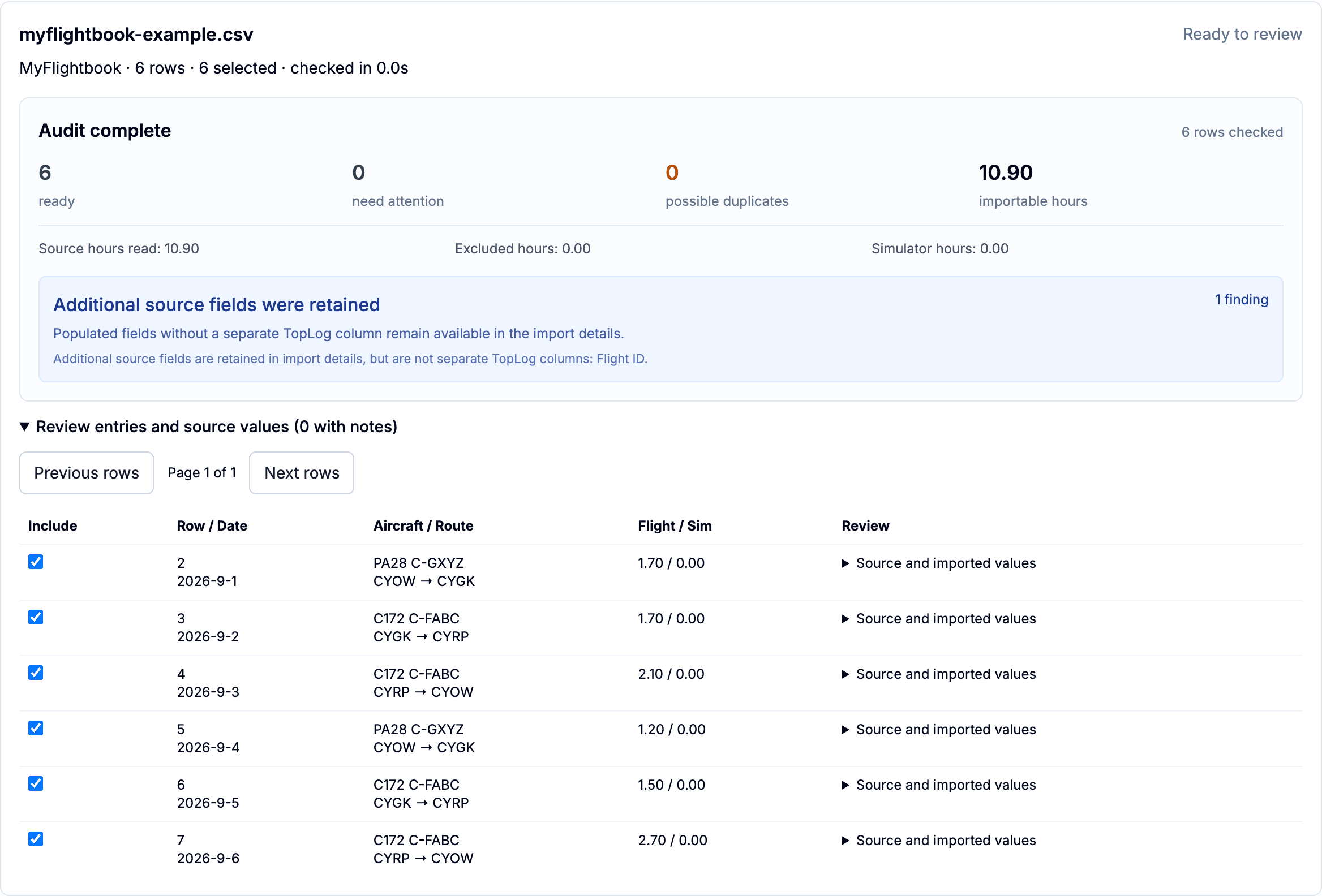
Download your MyFlightbook flight records, import the CSV into TopLog, and check dates, landing counts, aircraft, and simulator time before saving.
Download the CSV from MyFlightbook
Sign in to MyFlightbook on the web and choose Download under the Logbook tab.
Download the CSV version of your flight records and keep the original file unchanged.
In TopLog on iOS or web, start a spreadsheet import and select MyFlightbook.
Choose your United States or Canadian logbook layout, upload the file, and review the interpreted rows before saving.
CSV is the simplest starting point. TopLog also reads XLS/XLSX files containing the exported flight table on the first worksheet. A PDF or a workbook without populated flight rows will not substitute for that table.
MyFlightbook can include both decimal and hh:mm representations of time. These can describe the same hours. TopLog’s recognized importer reads the named time fields; do not add duplicate duration columns together when comparing totals.
Total landings versus day/night counts
A total landing count does not always include an explicit day/night split. TopLog reads the full-stop day and night fields and flags a larger overall landing count for review. It does not guess the classification of the remaining landings.
Aircraft identity and simulator time
Review Tail Number, ICAO Model, and Category/Class. Ground Simulator time remains separate from aircraft flight time. For simulator-only rows, check the Simulator / FTD result and the retained simulated-instrument details.
Flight IDs and additional properties
MyFlightbook flight IDs identify records within MyFlightbook. They do not make this a live sync or an update to the original account. Additional flight properties may stay in import details instead of becoming separate TopLog columns.
Keep dates and registrations intact
Opening and re-saving CSV files in a spreadsheet can change date formatting or numeric-looking registrations. Try the untouched download first. In TopLog’s review, check a few dates where the day and month could be confused, plus any aircraft identifiers containing leading zeros.
TopLog’s possible-duplicate checks compare flight details. Possible duplicates start unselected for your review; they are not automatically merged. This is particularly useful when an export overlaps records already saved in TopLog.
What this transfer includes
The importer brings supported flight-table data into TopLog. It does not recreate every MyFlightbook custom property, attachment, signature, or training relationship. Keep your source account and backups for records outside the imported fields.
See the shared import checklist for file limits, review steps, and how to continue an unfinished import.
Current web import review, shown with fictional sample flights. Your file determines the checks and notes shown.
Bring your records over. Review before you save.
Import on iOS or the web. Saving spreadsheet imports is included with Standard and Unlimited. Start with a representative file and keep your original export.