ForeFlight
Use the logbook CSV export, keeping its aircraft and flight tables together. TopLog reads the flight rows and looks up aircraft details from the export.
See ForeFlight instructions →Import guides
Bring flights from ForeFlight, LogTen, MyFlightbook, or your own spreadsheet into TopLog on iOS and web. Check the import before saving.
Export from your current logbook, then choose the source and your United States or Canadian logbook layout in TopLog. Recognized formats use a dedicated importer. For other spreadsheets, TopLog proposes column mappings for you to check.
Use the logbook CSV export, keeping its aircraft and flight tables together. TopLog reads the flight rows and looks up aircraft details from the export.
See ForeFlight instructions →Use Export Flights (Tab) from LogTen’s Reports → Exporters menu. Upload the resulting TXT file without converting it to a PDF.
See LogTen instructions →Download your flight records as CSV. TopLog recognizes the MyFlightbook fields; check the hours, landing counts, and any additional flight properties.
See MyFlightbook instructions →Upload CSV, TSV, TXT, XLS, or XLSX. Check the date format, first data row, and column assignments before reviewing the interpreted flights.
See how column mapping works →On iOS, start the spreadsheet import from Home. On the web, open Imports. Choose the source and country, then upload your files.
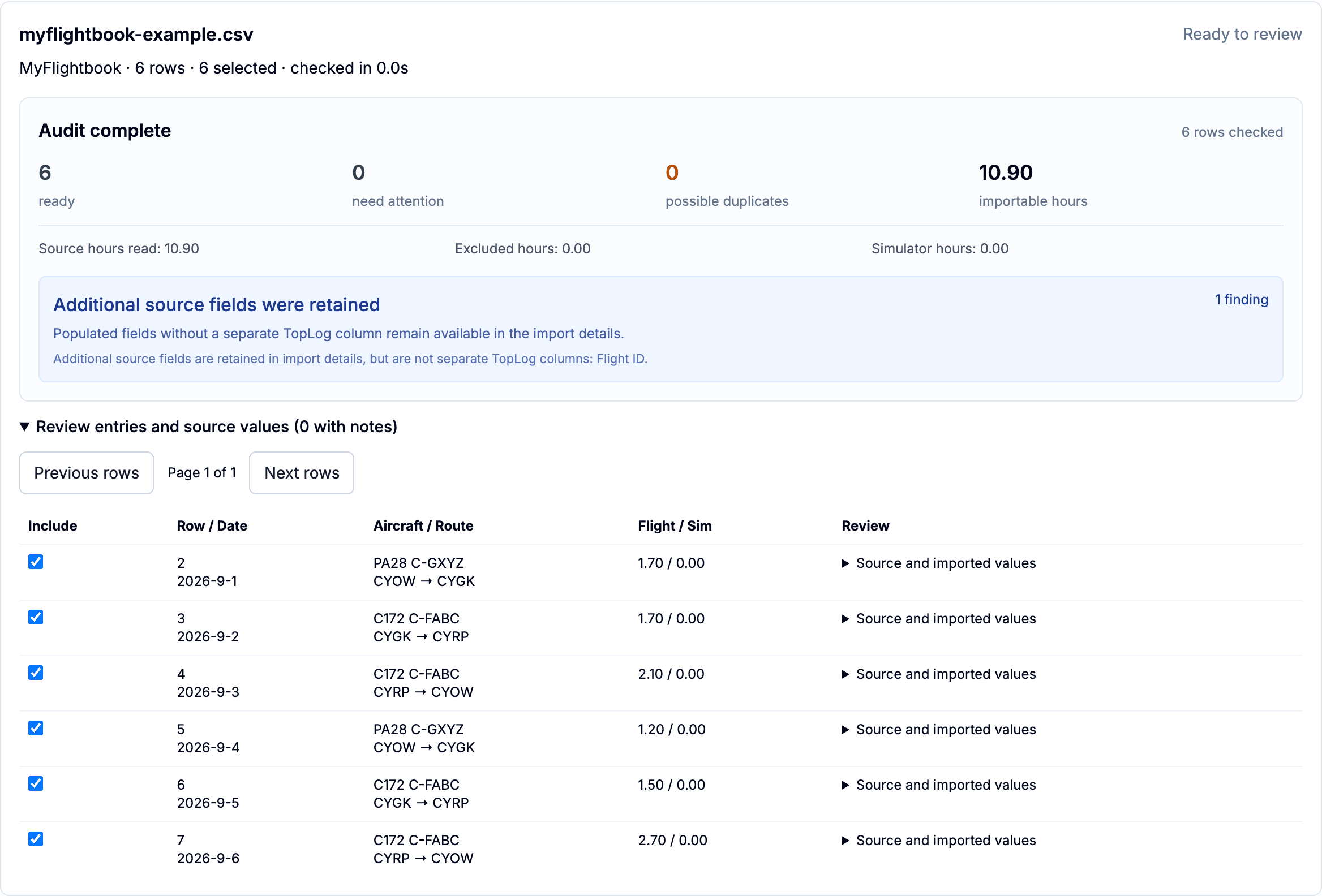
Compare the interpreted rows with the source. Inspect missing information, possible duplicates, flight and simulator hours, and any columns needing attention.
Select the rows you want to keep. Rows with errors cannot be saved; possible duplicates start unselected. Your original file remains your reference.
For your own spreadsheet, TopLog shows the source columns with its proposed labels above them. Check the original headings and sample values, change any label that is wrong, then apply the changes to recheck every row before saving.
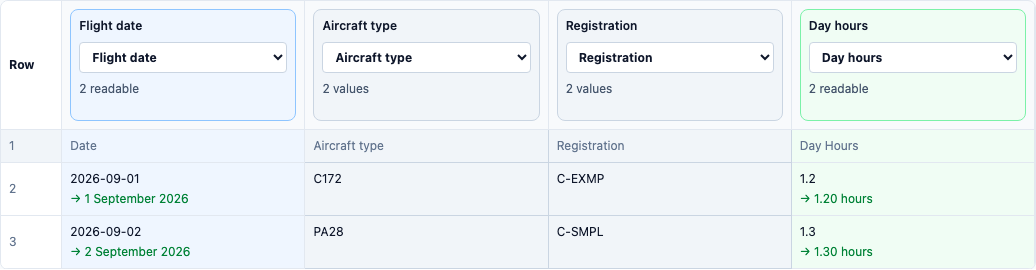
Example flights and registrations shown here are fictional.
On iOS, return to your import from Home while the files are checked or when you are ready to review. On the web, return to Imports to continue a processing or ready import. If an upload was interrupted before the file arrived, choose that original file again.
File import moves the supported flight data; it does not continuously sync accounts or reproduce every feature of the source app. Keep separate copies of signatures, attachments, and other records that are not part of the imported flight table.
Import on iOS or the web. Saving spreadsheet imports is included with Standard and Unlimited. Start with a representative file and keep your original export.